In this article: You'll learn how to enable your Lumos helmet's front headlight and rear lights using the Lumos app, save the settings to your helmet, and manually update your helmet's firmware if needed.
This Article Applies to the Following Helmets
Difficulty
★☆☆ Easy
Estimated Time
5 - 10 Min
Before You Start
Requirements
- A charged Lumos helmet
- The Lumos app installed on your smartphone
- Bluetooth enabled on your phone
- Internet connection
Note: For the Lumos Nyxel, your MOD bike display must be running firmware version 4.20.11.
If your MOD display is running an older firmware version, please contact MOD BIKES Customer Support for assistance updating your display before proceeding. Some Lumos features may not function correctly until the display has been updated.
Firmware
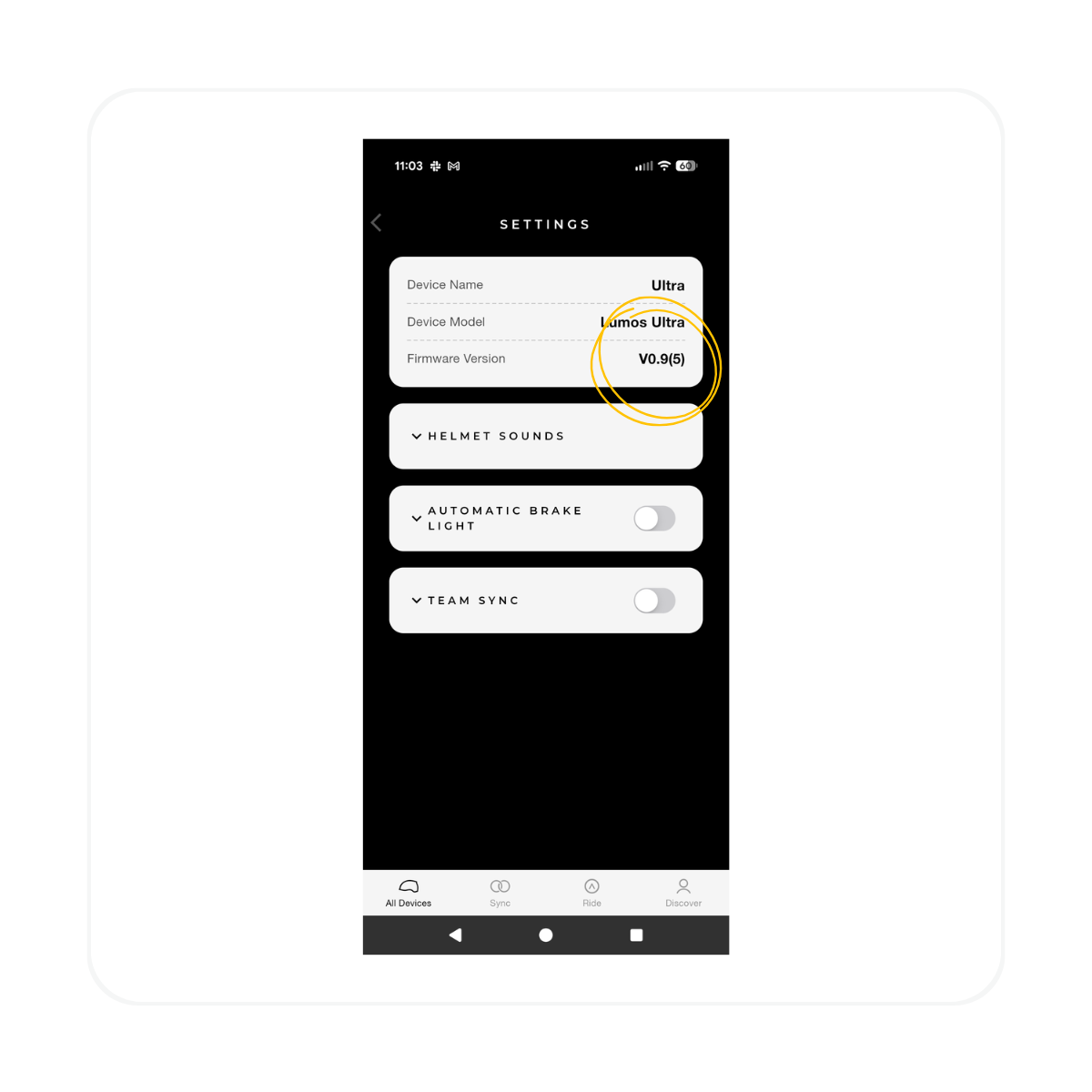
This guide was tested using Lumos firmware version V0.9(5).
When you pair your helmet with the Lumos app, the app will automatically check for and install the latest available firmware. Because firmware versions may change over time, your helmet may display a different version than the one shown in this guide.
The steps in this article have also been verified to work across multiple firmware versions, although the appearance of some menus or options may vary slightly as Lumos releases updates.
Steps | All Helmets
Step 1: Pair Your Helmet with the Lumos App
Turn on your Lumos helmet.
Press and hold the helmet's Power button until the LED begins flashing, indicating it has entered pairing mode.
Open the Lumos App on your smartphone.
Your helmet should appear under the available devices.
Tap Pair and wait for the helmet to connect.
Step 2: Open the Front Light Settings
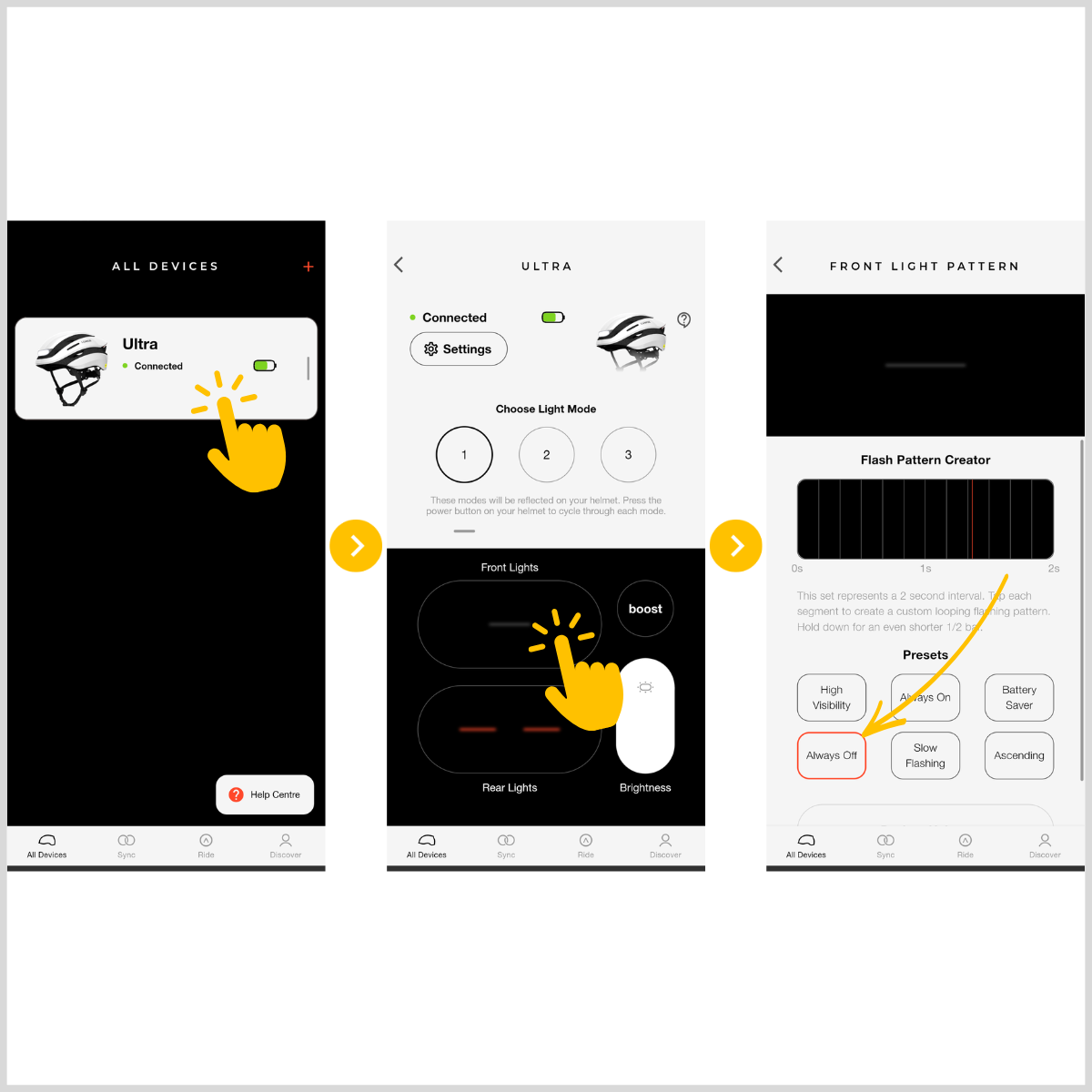
From the All Devices screen, tap your connected Lumos helmet.
Tap the Front Lights icon.
Check whether the following option is currently selected:
Always Off
Always On
If Always Off is selected, your helmet's front headlight will remain disabled.
Step 3: Enable the Front Headlight and Save Settings
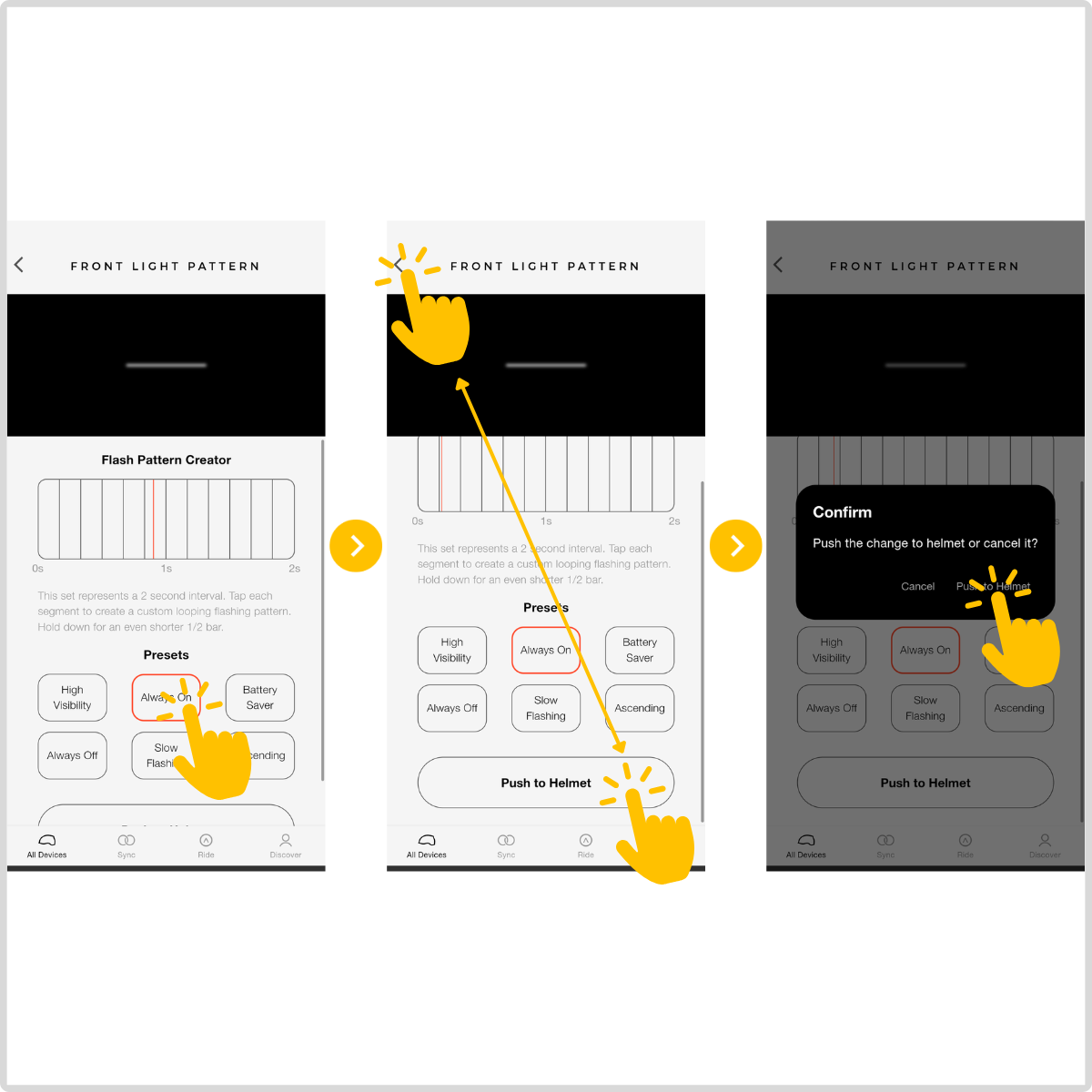
Tap Always On to enable the helmet's front headlight.
Tap Push to Helmet to immediately save the new setting.
ORTap the Back button.
The Lumos app will ask if you want to Cancel or Push to Helmet.
Tap Push to Helmet to save your changes.
Note: Your new headlight setting will not be applied until it has been pushed to the helmet.
Step 5: Open the Rear Light Settings
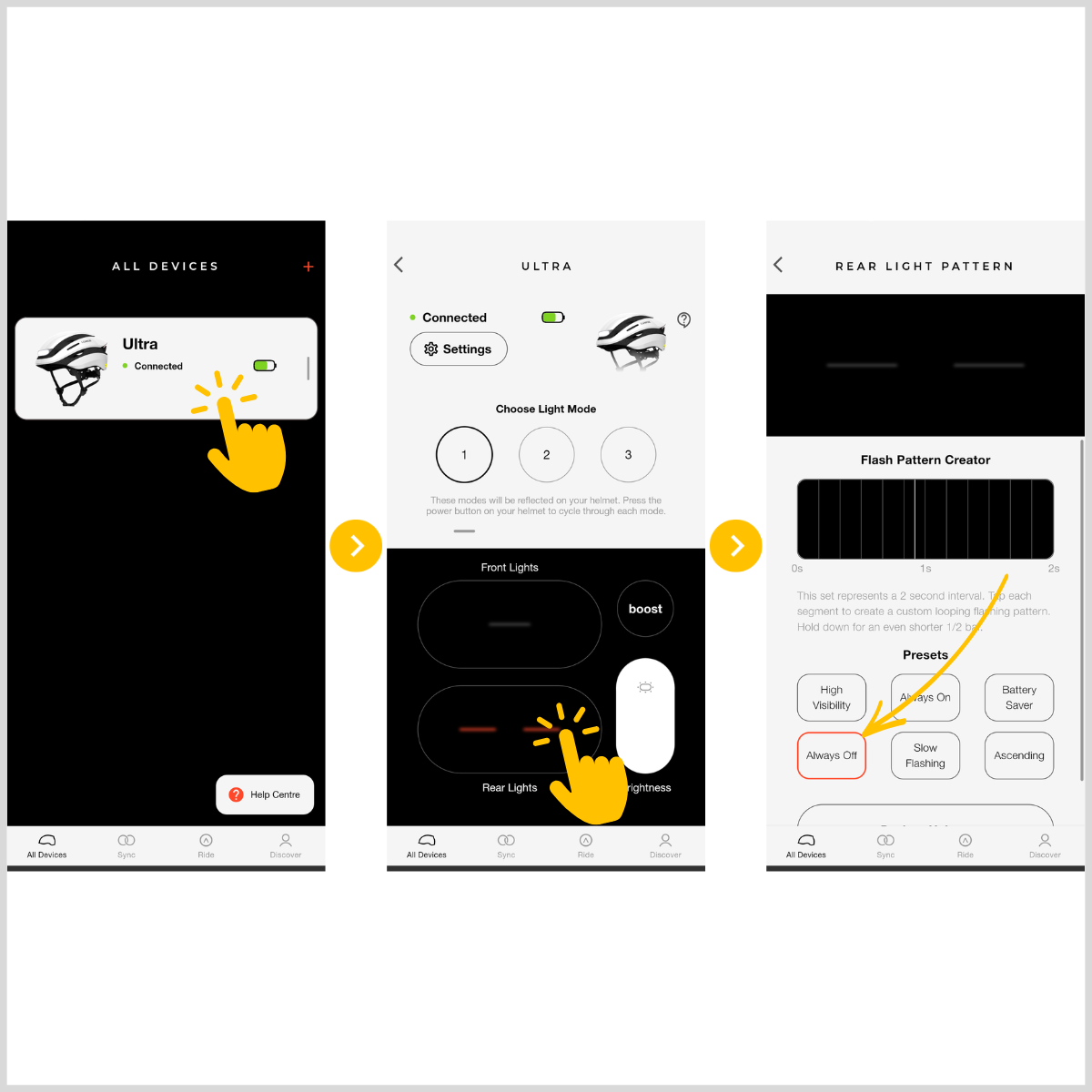
From the All Devices screen, tap your connected Lumos helmet.
Tap the Rear Lights icon.
Check whether the following option is currently selected:
Always Off
Always On
If Always Off is selected, your helmet's rear lights will remain disabled.
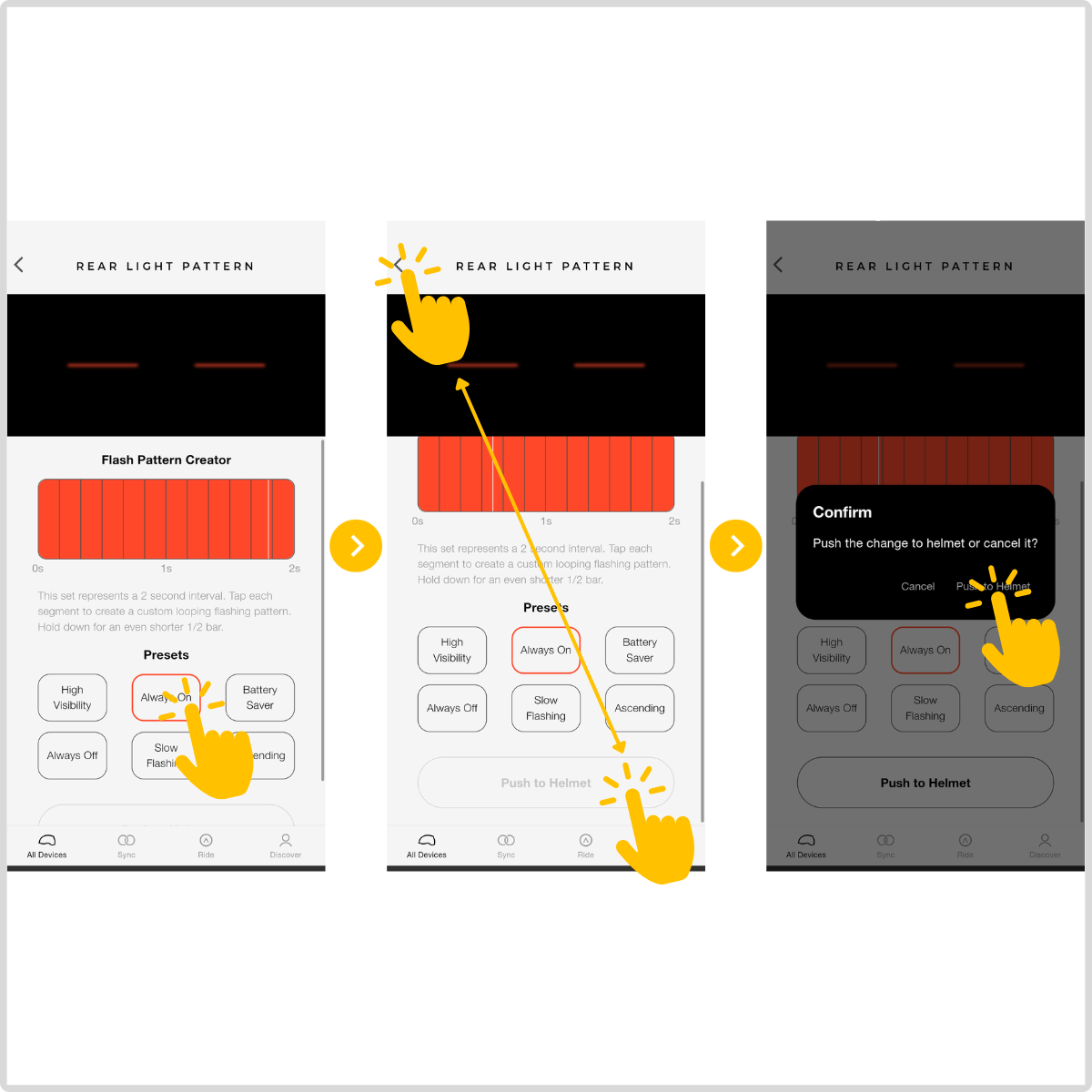
Step 6: Enable the Rear Lights and Save Settings
- Tap Always On to enable the helmet's rear lights.
- Tap Push to Helmet to immediately save the new setting.
OR - Tap the Back button.
- The Lumos app will ask if you want to Cancel or Push to Helmet.
Tap Push to Helmet to save your changes.
Note: Your new rear light setting will not be applied until it has been pushed to the helmet.
Manually Updating Helmet Firmware
In most cases, simply pairing your helmet with the Lumos app will automatically prompt you to install the latest available firmware.
If the update does not begin automatically, or if you're instructed by MOD BIKES Support to manually place the helmet into firmware update mode, follow the steps below.
Step 1: Enter Firmware Update Mode
A. Turn the helmet off.
B. Press and hold the helmet's Power button.
C. While continuing to hold the power button, plug the helmet into a charger using a USB-C cable.
D. Continue holding the power button until the rear lights begin flashing.
The flashing tail lights indicate the helmet has successfully entered firmware update mode.
Step 2: Install the Firmware Update
A. Open the Lumos app.
B. The app should automatically detect the helmet and begin the firmware update.
C. Allow the update to complete before disconnecting the helmet.
Important During The Firmware Update
Keep the helmet plugged into the charger for the entire update.
Do not press the helmet's power button while the firmware is updating.
Leave the Lumos app open until the update is complete.
Avoid switching to other apps or using your phone during the update. The process typically only takes a few minutes.
Interrupting the firmware update could cause the helmet to become unresponsive or require additional support.
Troubleshooting
Helmet does not appear in the Lumos app → Make sure Bluetooth is enabled and the helmet is in pairing mode (flashing LED).
Unable to pair the helmet → Move your phone closer to the helmet and try pairing again.
Front light still does not turn on → Verify that Always On is selected and the setting has been pushed to the helmet.
Settings do not save → Tap Push to Helmet before exiting the settings page.
Firmware update does not begin → Then your helmet is most likely already up to date. If you are unsure, follow the instructions to manually force the firmware update instead.
Firmware update appears stuck → Leave the helmet connected for several minutes. If necessary, close and reopen the Lumos app and repeat the update process.
Helmet becomes unresponsive after an interrupted update → Contact MOD BIKES Customer Support before attempting another firmware update.
Helmet battery is low → Fully charge the helmet before changing settings or updating the firmware.
FAQS
Why doesn't my front headlight turn on?
The front headlight may be set to Always Off in the Lumos app. Change the setting to Always On and make sure to tap Push to Helmet to save the change.
Why didn't my setting save?
Changes are only saved after selecting Push to Helmet. Leaving the page without pushing the setting will not update the helmet.
Do I need to pair my helmet every time?
No. Once paired, the helmet should reconnect automatically whenever Bluetooth is enabled and the helmet is powered on.
However, in order to connect your Lumos helmet to the MOD Connect, we advise removing the helmet from pairing with the app to avoid conflict, as these helmets can only be paired to one device (lumos app or mod connect) at a time.
Will the Lumos app automatically update my helmet?
Yes. In most cases, the Lumos app will automatically check for and prompt you to install the latest available firmware when your helmet is paired.
When should I manually update the firmware?
Manual firmware update mode is typically only needed if the automatic update does not start or if you're instructed to do so by MOD BIKES Customer Support.
What should I do if the firmware update is interrupted?
Leave the helmet connected and try reopening the Lumos app. If the helmet becomes unresponsive, contact MOD BIKES Customer Support before attempting another firmware update.
Does changing the front light setting affect the rear lights or turn signals?
No. This setting only controls the helmet's front headlight.
If you're experiencing a similar issue with your rear lights, return to your helmet settings in the Lumos app and open the Rear Lights screen. Verify that the rear lights are set to Always On rather than Always Off, then tap Push to Helmet to save the changes. The rear lights use a separate setting from the front headlight.
Why won't my Lumos Nyxel connect to my MOD bike?
The MOD display must be running firmware version 4.20.11. If your display is running an older firmware version, contact MOD BIKES Customer Support for assistance updating your display before troubleshooting further.
Lumos Ultra is supported by older versions of the MOD Display.
Warning
⚠️ Important Safety & Liability Notice

Always verify that your Lumos helmet's front and rear lights are operating correctly before riding, especially in low-light conditions.

Never disconnect the charging cable or press the helmet's power button while a firmware update is in progress. Interrupting the update may damage the helmet's firmware and require additional support to restore functionality.

If you are unable to complete the steps in this guide or your helmet continues to malfunction, contact MOD BIKES Customer Support for further assistance.
Was this article helpful?
That’s Great!
Thank you for your feedback
Sorry! We couldn't be helpful
Thank you for your feedback
Feedback sent
We appreciate your effort and will try to fix the article